IPTV Smarters Samsung TV: Options for Tizen Televisions
Samsung televisions do not run Android, so the Fire TV and Android instructions do not apply. This IPTV Smarters Samsung TV guide explains how to get the player on a Tizen set, what to do if your model does not offer it, and how to sign in with Best IPTV 8K.
How Samsung televisions differ
Samsung sets run an operating system called Tizen. Apps come from Samsung's own store, and files made for Android cannot be installed. Whether a particular player is offered depends on the model year and the region, and listings change over time.
Look in the app store
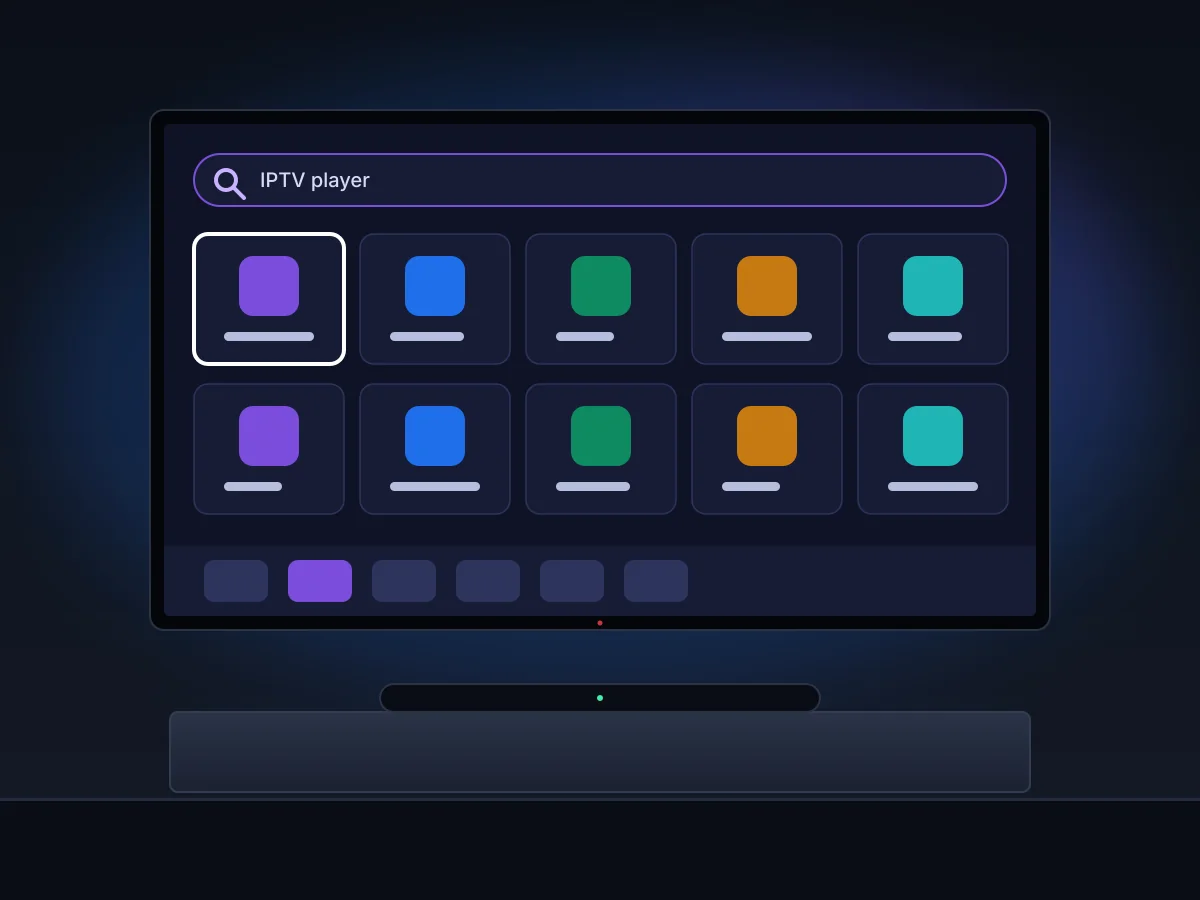
Press the home button, open Apps and use the search icon to look for the player by name. Versions of it are listed for many recent models, sometimes under a slightly different name. If you find it, install it and add it to the home bar.
Sign in
Open the app, accept its terms and choose the Xtream Codes login. Enter a name, your username, your password and the server address from your activation email, then confirm. The channel list, the library and the guide will load.
If your model does not offer it
You have two good options. The first is to use another player from the Samsung store that accepts Xtream Codes or M3U details; several exist, and your login works in any of them. The second is to plug a Fire TV or Google TV stick into an HDMI port and install the app there. The stick route gives the familiar interface on any television, new or old.
Your options at a glance
| Situation | What to do |
|---|---|
| App listed in the Samsung store | Install it and sign in with Xtream Codes |
| App not listed, other players are | Use a compatible player with the same details |
| Older set or slow menus | Add a streaming stick and install the app there |
| You want the same app on every TV | Use sticks throughout the house |
Using the Samsung remote
The slim remote has few buttons. The directional ring moves through lists, the centre selects, and holding the centre button on a channel usually opens its options, including favourites. The back button steps out one level. For typing login details, the on-screen keyboard is slow; a phone with the SmartThings app can act as a keyboard.
Network connection
Samsung sets have a network port on the back. Use it if you can. On Wi-Fi, choose the 5 GHz band. Run the television's own network test from the settings menu before blaming the app for a pausing picture. See best IPTV no buffering.
Picture settings
Recent Samsung televisions are 4K, and the larger premium ranges are 8K. Select the matching version of a channel in the list. Use the Movie or Filmmaker picture mode for films and Standard for sport. See IPTV Smarters Pro 4K and, for 8K sets, best IPTV 8K.
Keeping it working
Install the television's software updates and update the app from the store. If the app misbehaves, hold the power button on the remote until the set restarts, which clears its memory, then try again.
Related guides
For sticks see IPTV Smarters Firestick; for sets with Google TV, IPTV Smarters Android TV; for televisions in general, best IPTV for Smart TV.
Model years matter
Samsung adds and removes apps from its store by model year. A set from the last few years is likely to offer more players than one from eight or ten years ago, and very old models may offer none that still work. You can find the model code on the back label or under Support, About This TV in the settings menu; the store only shows apps that suit it.
App on the television, or a stick?
For IPTV Smarters Samsung TV viewing there are two sound choices, and each has its merits.
- The television's own app keeps one remote and no extra hardware, and uses the set's network port.
- A stick gives the same interface on every television in the house, is replaced cheaply and is not tied to Samsung's store.
If your set is recent and the app is listed, use it. If the set is older, or you want identical menus in every room, a stick is the better investment.
Signing in without the remote
Typing a server address with a television remote is slow. Many people sign in once, carefully, and never touch it again. If you make a mistake, edit the saved user and correct the single character. Login details and their errors are explained in IPTV Smarters Xtream Codes.
Plans for IPTV Smarters Samsung TV viewing
Any plan works. Choose two or three screens if several televisions will play together.
IPTV Smarters Samsung TV: common questions
Can I install the Android version on a Samsung television?
No. Samsung sets run Tizen and only accept apps from the Samsung store.
The app is not in my store. What now?
Use another compatible player from the store, or add a streaming stick and install the app there.
Is IPTV Smarters Samsung TV setup different on LG?
The idea is the same: LG sets have their own store, and a stick is the fallback.
Does 4K work on Samsung sets?
On 4K models with a suitable connection, yes.
More Best IPTV 8K guides
IPTV Smarters guides
Best IPTV 8K by location
Set up IPTV Smarters Samsung TV viewing today
Order a plan, then install the app or add a stick.
See plans from $39 CAD