IPTV Smarters Pro 4K: Settings and Devices for a Sharp Picture
The app can play 4K streams, but whether you see them depends on the device it runs on, the connection and a few settings. This guide to IPTV Smarters Pro 4K viewing explains what to check, in order.
Three conditions outside the app
- The television must be a 4K set.
- The device running the app must decode 4K. Current Fire TV 4K sticks, recent Android TV and Google TV devices and recent Smart TVs do; older sticks and budget boxes often do not.
- The connection must deliver about 25 Mbps to that device, steadily.
If any one of the three is missing, the app will play a lower quality or stutter.
Choosing the 4K stream
Services that offer several qualities list each version of a channel separately, with a label. In the Live TV tab, pick the entry marked 4K. Add it to favourites next to the Full HD version, so that you can step down in two clicks if the connection is busy.
Decoder settings
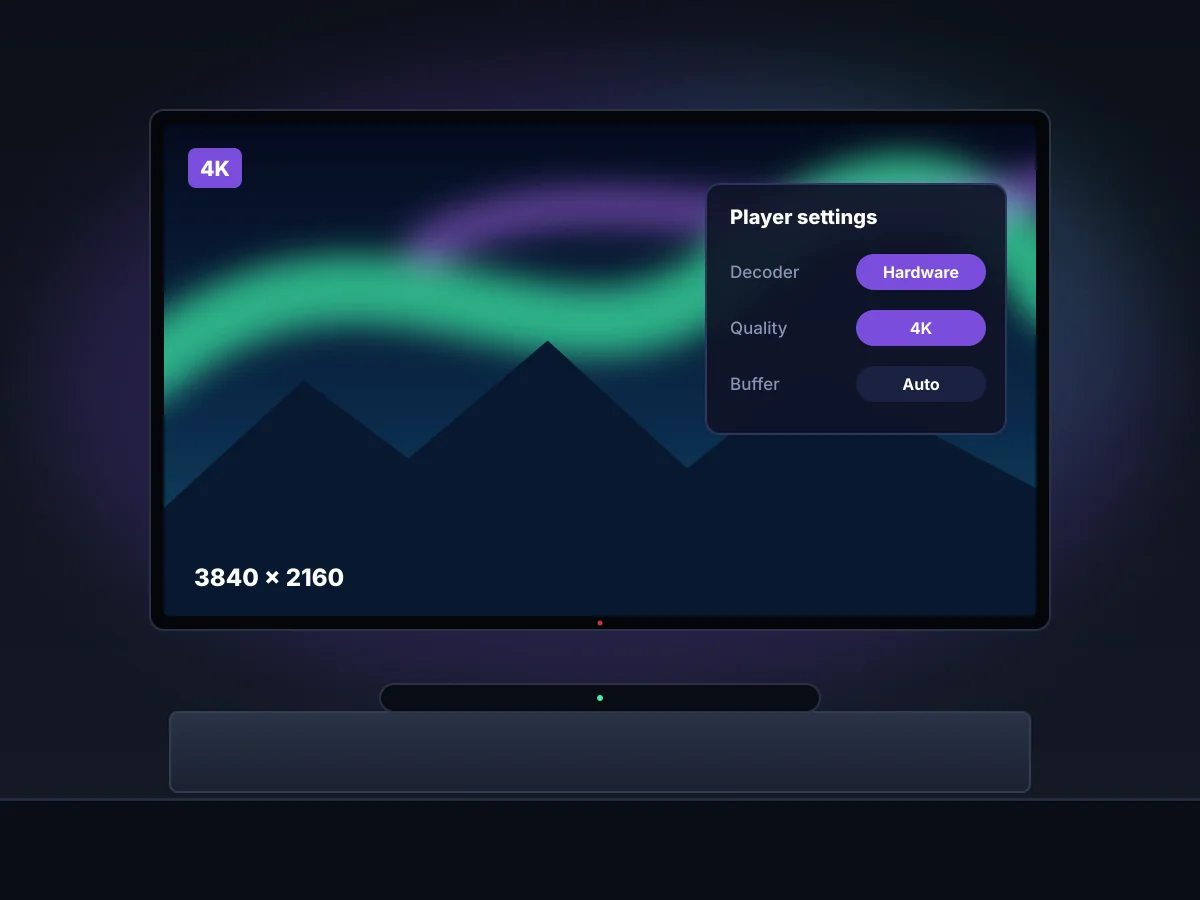
In the app's player settings you can usually choose between hardware and software decoding. Hardware decoding uses the device's video chip and is the right choice for 4K on almost every device. If you see a black picture with sound, or a picture that breaks into blocks, try the other option; some chips handle certain stream types better in software, at lower resolutions.
What each device can do
| Device | 4K in the app | Note |
|---|---|---|
| Fire TV Stick (basic) | No | Limited to Full HD |
| Fire TV Stick 4K models | Yes | Use 5 GHz Wi-Fi or an Ethernet adapter |
| Android TV / Google TV boxes and sets | Usually | Depends on the model's video chip |
| Recent Samsung and LG televisions | Usually | Use the television's own network port |
| Phones and tablets | Often | The screen is too small to benefit |
The connection at the device
Run a speed test on the device itself; the app includes one in its settings, and most devices have one in their network menu. If the result is well below what you pay for, the home network is the limit. A cable is the cure. More in best IPTV no buffering.
Using an external player
The app lets you assign a different video player for live television, films or series. If the built-in player struggles with a particular 4K stream on your device, installing a well-known video player and selecting it in the app's player selection menu can help. Most people never need this.
What looks best in 4K
Hockey and other live sport, nature programmes and recent films show the clearest gain. For studio programmes and news, Full HD is visually close and lighter on the connection.
Confirming the result
Use the information button on your television's remote. It should report 3840 x 2160 while a 4K channel is playing. If it shows 1920 x 1080, either the Full HD version of the channel is selected or the device has fallen back.
Higher still
Owners of 8K televisions can go further on selected channels, though few stick-type devices decode 8K; the television's own apps are the usual route. See best IPTV 8K. For setting the app up from scratch, see IPTV Smarters Pro Canada setup; for sticks, IPTV Smarters Firestick.
Frame rate and HDR
Resolution is not the only thing that makes a picture look good. Sport broadcast at a high frame rate looks far smoother than the same game at a low one, and a device has to work harder to decode it. If a 4K sports channel stutters on a stick that plays 4K films without trouble, frame rate is the likely reason; choose the Full HD version for that channel. High dynamic range, where a stream and a television both support it, adds depth to bright and dark areas.
A routine for big games
For IPTV Smarters Pro 4K viewing on an important night, prepare ten minutes early. Restart the device so its memory is clear. Open the 4K version of the channel and watch for a minute. If it is steady, leave it. If it hesitates, switch to the Full HD version in your favourites and stay there; a smooth picture matters more than the label during a game.
Do not blame the app first
When a 4K stream fails, the usual order of suspects is the Wi-Fi, the device, the stream and, last, the app. Work through them in that order and the cause is normally found in the first two. If you are choosing a service with 4K in mind, read best IPTV for Smarters Pro.
Plans for IPTV Smarters Pro 4K viewing
4K streams are included on every plan at no extra charge.
IPTV Smarters Pro 4K: common questions
Does IPTV Smarters Pro 4K playback cost extra?
No. If your device and connection can handle it, the 4K versions are part of every plan.
Why is my 4K channel black with sound?
Switch the decoder setting in the app's player settings, or check that the device supports 4K.
Is every channel available in 4K?
No. It depends on the source; the list labels each version.
Will a basic Fire TV Stick play 4K?
No. It is limited to Full HD. Choose a 4K model for a 4K television.
More Best IPTV 8K guides
IPTV Smarters guides
Best IPTV 8K by location
See IPTV Smarters Pro 4K on your own screen
Choose a plan, pick a 4K channel and compare.
See plans from $39 CAD