IPTV Smarters M3U Playlist: When and How to Use It
Alongside the Xtream Codes login, the app offers a second way in: loading a playlist. This IPTV Smarters M3U playlist guide explains what an M3U is, when it is useful, how to add one and what its limits are.
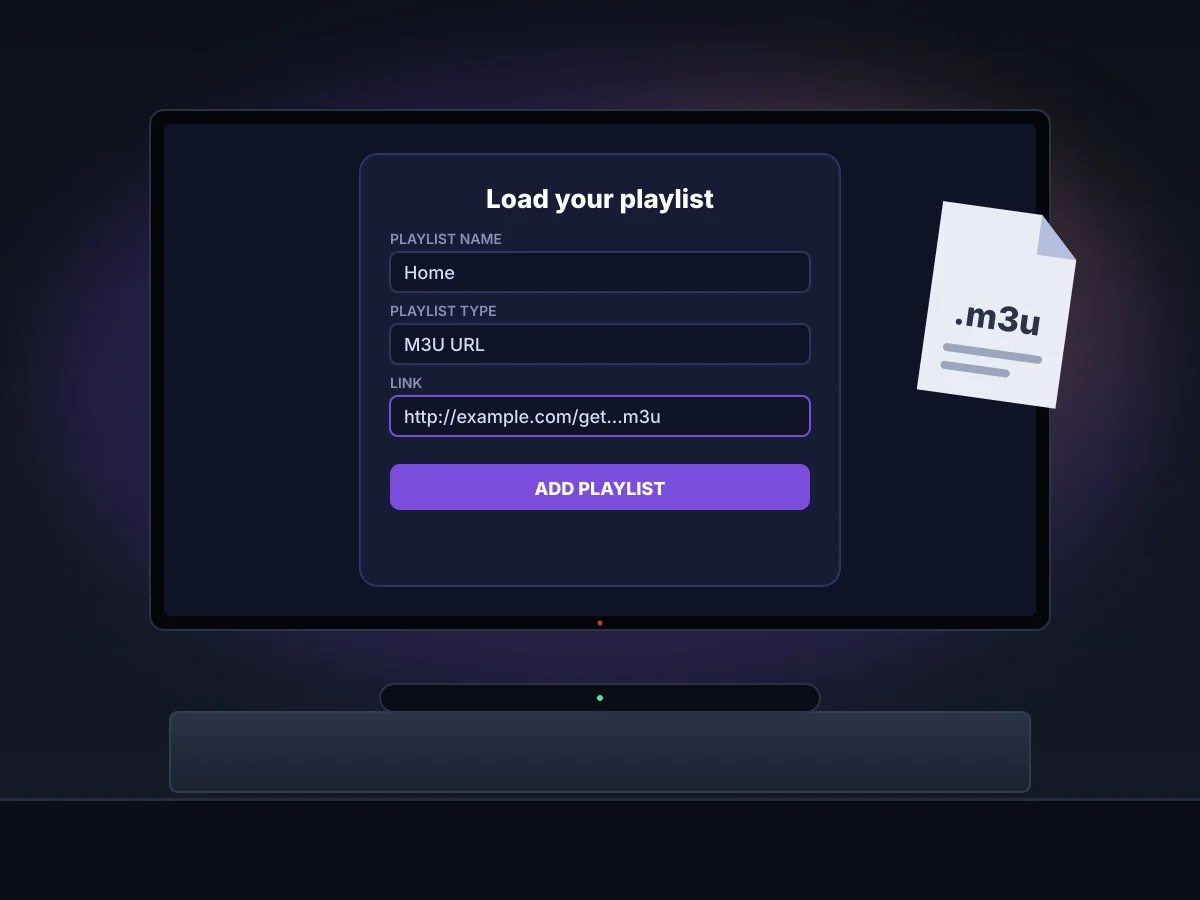
What an M3U is
M3U is a plain text format. Each entry has a line describing a channel, with its name, group and logo, followed by a line with the address of the stream. A playlist for a large service runs to many thousands of lines. Players read the list and build their channel folders from the group names.
Link or file
A playlist can reach the app in two ways. As a link, it is fetched from the service each time the app refreshes, so it stays current. As a file saved on the device, it is a snapshot and has to be replaced when channels change. The link is nearly always the better choice.
Xtream Codes compared with M3U
| Point | Xtream Codes login | M3U playlist |
|---|---|---|
| What you enter | Username, password, server address | One long link, or a file |
| Live channels | Yes | Yes |
| Films and series in their own tabs | Yes | Depends on the playlist type |
| Programme guide | Loaded automatically | May need a separate guide link |
| Catch-up | Where supported | Often not available |
| Account status in the app | Shown | Not shown |
| Typing effort | Three short items | One very long address |
When an M3U playlist is useful
- You use a second player app that only accepts M3U.
- You want the same list in a media player on a computer.
- You are testing a single stream or a short list of your own.
If none of these applies, use the Xtream Codes login described in IPTV Smarters Xtream Codes.
Adding a playlist in the app
- Open the app and choose to load your playlist or file.
- Give the playlist a name.
- Select link and paste or type the M3U address, or select file and browse to it.
- Confirm and wait while the list is read.
Large playlists take longer to load than an Xtream login, because the app must read every line.
Getting your M3U link
Your activation email contains the details for the Xtream Codes login. If you need an M3U link for another player, ask support through the Contact page and say which app it is for, since some players expect a particular playlist type.
The programme guide with M3U
With a playlist, guide data usually comes from a second address in a format called XMLTV. The app has a place to enter it in its settings. If the guide is empty after loading a playlist, the guide address has not been set or has not finished downloading.
Typing a long address on a television
An M3U link can be over a hundred characters, which is tedious with a remote. On Fire TV and Android TV you can use the phone remote app as a keyboard and paste the link. This is one more reason the three short items of the Xtream login are easier.
Problems and fixes
- Playlist will not load: check the link for a missing character; make sure the device is online.
- Channels appear but will not play: the plan may have expired, or the maximum number of connections is in use.
- Folders look jumbled: the playlist type does not suit the app; ask support for the standard type.
- List is out of date: you loaded a file; switch to the link.
Related guides
For the full installation sequence see IPTV Smarters Pro Canada setup, and for an overview of the app, IPTV Smarters Pro Canada.
Reading a playlist entry
Open an M3U file in a text editor and you will see pairs of lines. The first begins with a tag and carries the channel's details: a name, a group title that becomes the folder, a logo address and an identifier used to match guide data. The second is the stream's address. Players do nothing more mysterious than read these pairs in order. Understanding that makes most playlist problems easy to diagnose: a missing group title puts a channel in the wrong folder, and a wrong identifier leaves its guide blank.
Playlist types
Services can generate the same list in more than one form. The fuller form includes group titles, logos and guide identifiers; the plain form has names and addresses only. For an IPTV Smarters M3U playlist you want the fuller form, so that folders and logos appear as they do with the Xtream login.
Refreshing
A playlist loaded by link is read again when the app refreshes its data, either automatically or when you ask. If a channel has been added or renamed and you do not see the change, refresh the playlist from the app's settings. If you need help choosing a service that supports both login methods properly, see best IPTV for Smarters Pro.
Plans that work with an IPTV Smarters M3U playlist
Every plan can be used through the Xtream Codes login or, on request, an M3U link.
IPTV Smarters M3U playlist: common questions
Is an IPTV Smarters M3U playlist better than Xtream Codes?
Not for most people. Xtream Codes loads more features with less typing. M3U is for players or uses that need it.
Can I open the playlist on a computer?
Yes, in a media player that reads M3U. It counts as one of your plan's screens while it plays.
Why is my guide empty with M3U?
The guide address has to be added separately in the app's settings.
Should I share my M3U link?
No. It contains your login. Keep it within your household.
More Best IPTV 8K guides
IPTV Smarters guides
Best IPTV 8K by location
Use an IPTV Smarters M3U playlist with a real service behind it
Order a plan and ask support for your link if you need one.
See plans from $39 CAD