IPTV Smarters Firestick: Install and Sign In
The Fire TV Stick is the most common home for the app. Because the app is often not listed in the stick's own store, installation takes a few extra steps. This IPTV Smarters Firestick guide walks through them and through signing in with Best IPTV 8K.
Check the store first
Press the home button, open Find or Search and look for the player by name. If it appears, install it and skip to signing in. Availability changes by region and over time, so it is always worth a look.
Step 1: install Downloader
Search for Downloader, an app that fetches files from web addresses, and install it from the store.
Step 2: allow installation
Open Settings, then My Fire TV, then Developer Options, and switch on installation of unknown apps for Downloader. On newer sticks, Developer Options is hidden until you open About and press the select button on the device name seven times.
Step 3: fetch the player
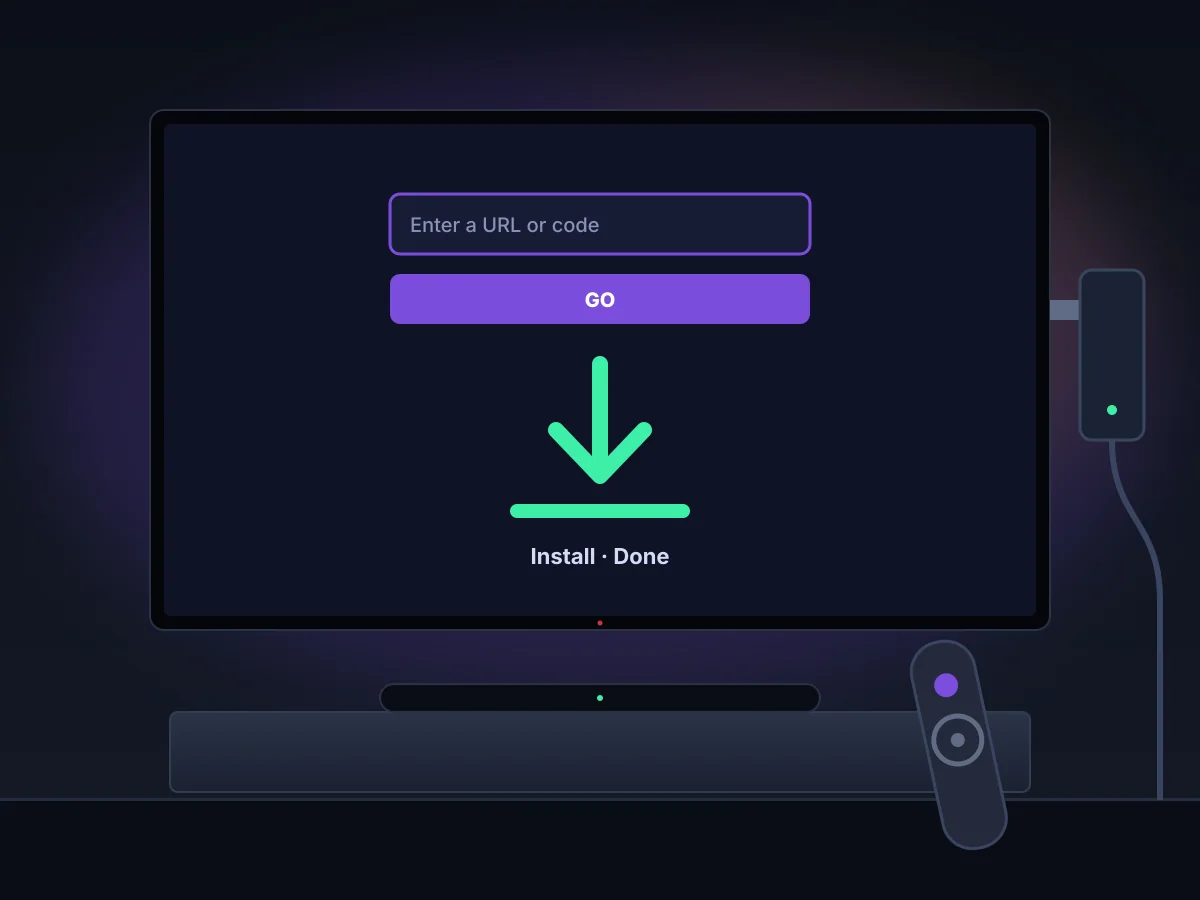
Open Downloader and enter the download address for the player. Use the address published on the developer's official website, or the one given in your activation email. The file downloads, and the stick asks whether to install it. Choose Install, then Done, and delete the installer file when prompted to save space.
Step 4: sign in
Open the app, accept its terms and choose Login with Xtream Codes API. Enter a name of your choice, then the username, password and server address from your activation email. Select Add User and wait for the lists to load.
The steps at a glance
| Step | Where | What to do |
|---|---|---|
| 1 | App store | Install Downloader |
| 2 | Settings > My Fire TV > Developer Options | Allow Downloader to install unknown apps |
| 3 | Downloader | Enter the player's official download address and install |
| 4 | The player | Login with Xtream Codes API using your three details |
Put the app on the home screen
Hold the home button, choose Apps, highlight the player, press the menu button and move it to the front. It will then appear in the first row every time you switch on.
Remote tips
The centre button plays a channel; pressing it again shows it full screen. The left and right ring moves through channels in most views. The menu button opens options such as adding to favourites. Voice search on the remote does not look inside the app, so use the app's own search.
Getting a steady picture
The stick sits behind the television, where Wi-Fi is weakest. Use the HDMI extension from the box, connect to the 5 GHz band and plug the power adapter into the wall. For the main television, an Ethernet adapter gives the stick a wired link. On a basic stick choose Full HD channels; on a 4K stick the 4K versions are available. See IPTV Smarters Pro 4K.
Common problems
- The stick will not install the file: the permission in step 2 is not switched on for Downloader.
- The app opens then closes: free up storage and clear the app's cache.
- Login fails: a typing mistake in one of the three details; see IPTV Smarters Xtream Codes.
- Channels pause: weak Wi-Fi; see best IPTV no buffering.
Safety
Install the player only from the stick's store or from the developer's official address. Do not use modified copies from other sites, and switch the unknown-apps permission off again once the installation is finished. For other devices see IPTV Smarters Android TV.
After an update or a new stick
Fire TV sticks update themselves, and now and then an update resets a permission or removes an app that was installed from outside the store. If the player disappears, repeat steps 2 to 4; it takes a few minutes and your login details have not changed. The same applies when you replace a stick with a newer model. Favourites are stored on the device, so they are rebuilt on the new one.
IPTV Smarters Firestick at the cottage
A stick is easy to carry, which makes it popular with people who divide their time between two places. At the second address, join the Wi-Fi and open the app. On a slow rural connection, use the Full HD versions of your channels. If the connection is shared with neighbours or guests, evenings may be busier than afternoons.
Storage on a stick
Sticks have little storage, and a player that caches guide data and artwork can fill it over time. If the stick becomes slow or the app closes unexpectedly, open Settings, Applications, Manage Installed Applications, choose the player and clear its cache. Remove apps you no longer use. An IPTV Smarters Firestick installation that is kept tidy runs for years. What the app needs from a service is covered in best IPTV for Smarters Pro.
Plans for IPTV Smarters Firestick viewing
Any plan works on a Fire TV Stick. Two sticks playing at once need a two-screen plan.
IPTV Smarters Firestick: common questions
Is the app in the Firestick's store?
Sometimes, depending on region and date. If it is not listed, install it with Downloader from the developer's official address.
Is IPTV Smarters Firestick installation safe?
Yes, when the file comes from the developer's official source. Turn the unknown-apps permission off afterwards.
Which stick should I buy?
Any current model runs the app. Choose a 4K stick for a 4K television.
Can I take the stick to another house?
Yes. Join the Wi-Fi there and open the app; your login is saved.
More Best IPTV 8K guides
IPTV Smarters guides
Best IPTV 8K by location
Set up IPTV Smarters Firestick viewing this evening
Order a plan and follow the four steps.
See plans from $39 CAD